
Share Your Referral the Right Way
ROARBET88 makes it easy to invite others using your personal referral tools. You can share using social apps (Facebook, WhatsApp, Telegram), or simply copy your unique link and paste it anywhere. After friends register using your referral, they’ll appear in your downline list.
Before You Share
These small checks help your friends join faster without confusion.
- Make sure you’re logged in so your invite link includes your referral code.
- Use a clear message: “Register with my link” (avoid sending short or suspicious links).
- If your friend’s page is slow, recommend Chrome and stable mobile data/Wi-Fi.
How to Share Your Invite Link (Step-by-Step)
Follow these options. Tap any image to open it full size in a new tab.
-
1. Share directly to social apps (fastest)
On the Invite page, tap Share. Choose WhatsApp, Facebook, Telegram, or another app to send your referral instantly. You can also show your QR code to someone nearby so they can scan and register.
- Best for quick sharing in group chats.
- QR is useful for face-to-face sharing.
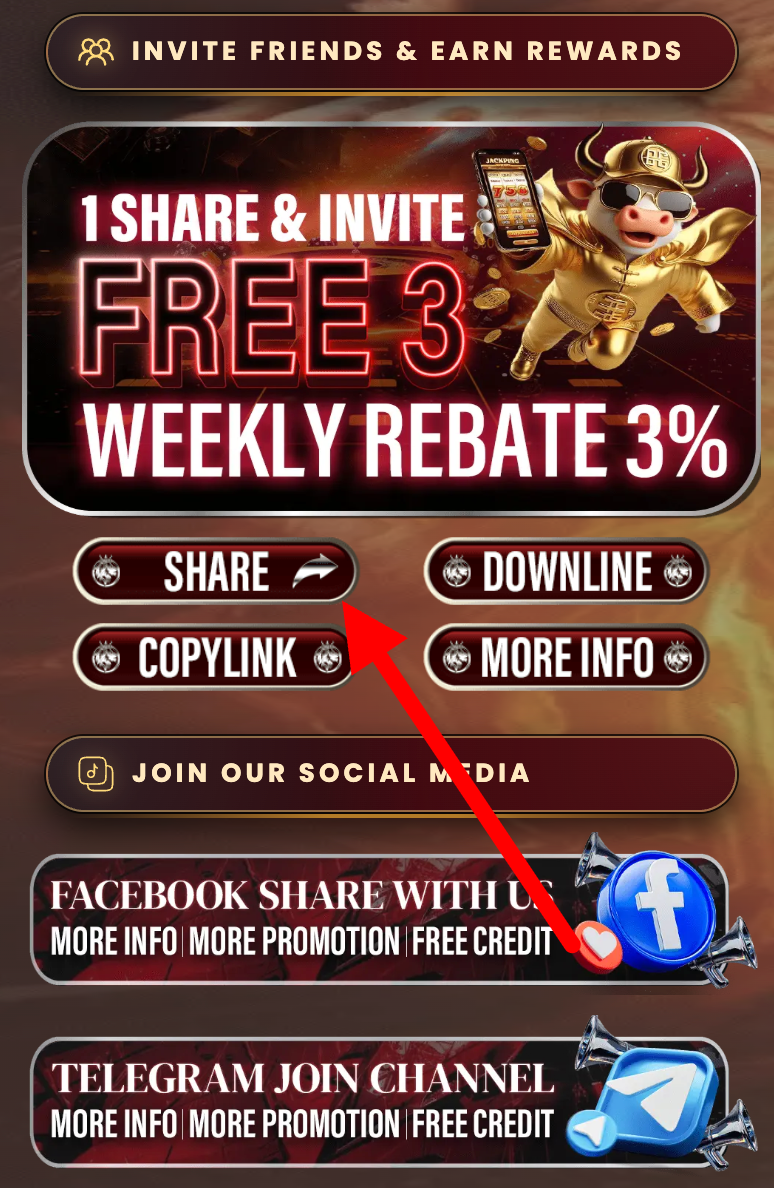 Screenshot: Tap “Share” to send your invite link or use the QR code.
 -
2. Copy your referral link (share anywhere)
Prefer manual sharing? Tap Copy Referral Link. Then paste it into any message, SMS, email, or social post. This link contains your referral code automatically.
Tip: Add a short note like “Use this link to register” so your message doesn’t look like spam.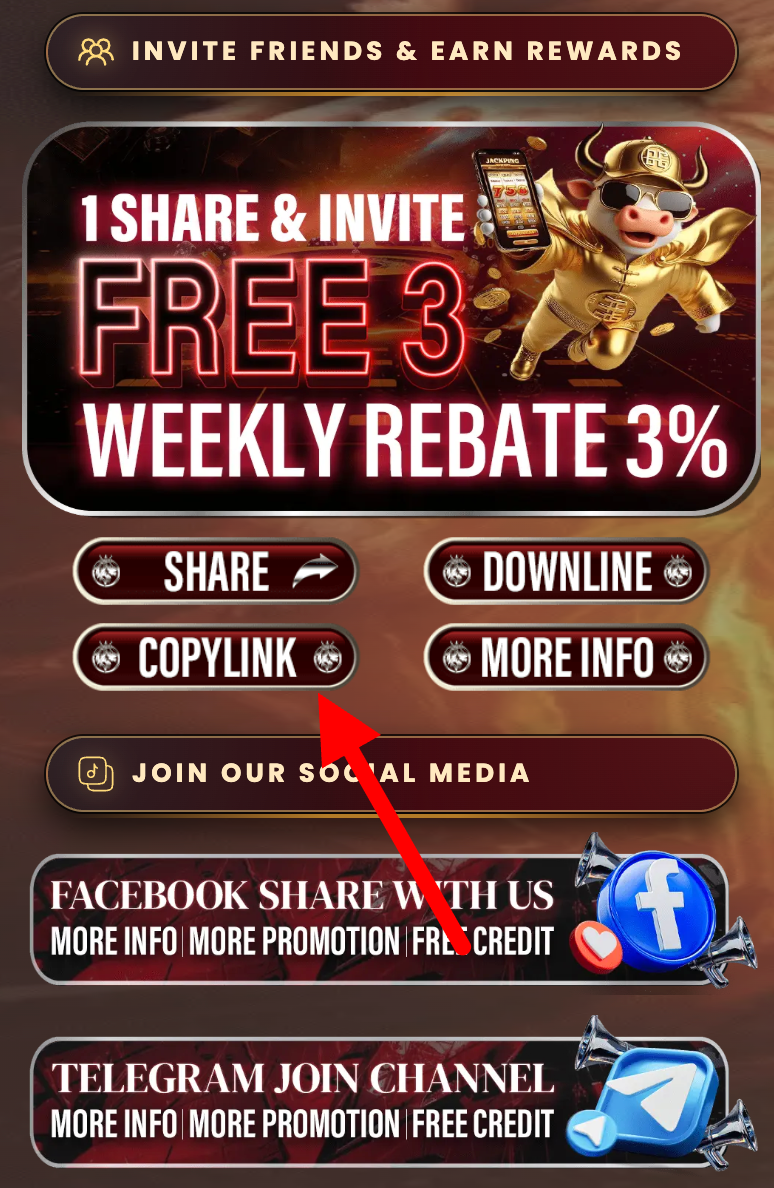 Screenshot: Copy your referral link and paste it anywhere.
 -
3. Open your downline / referral list
To track results, go to Downline Chart (or Referral List). This shows who joined through your invite link. If your friend registered successfully, they should appear here.
- New registrations may take a short time to appear.
- Use this page to confirm your invite was used correctly.
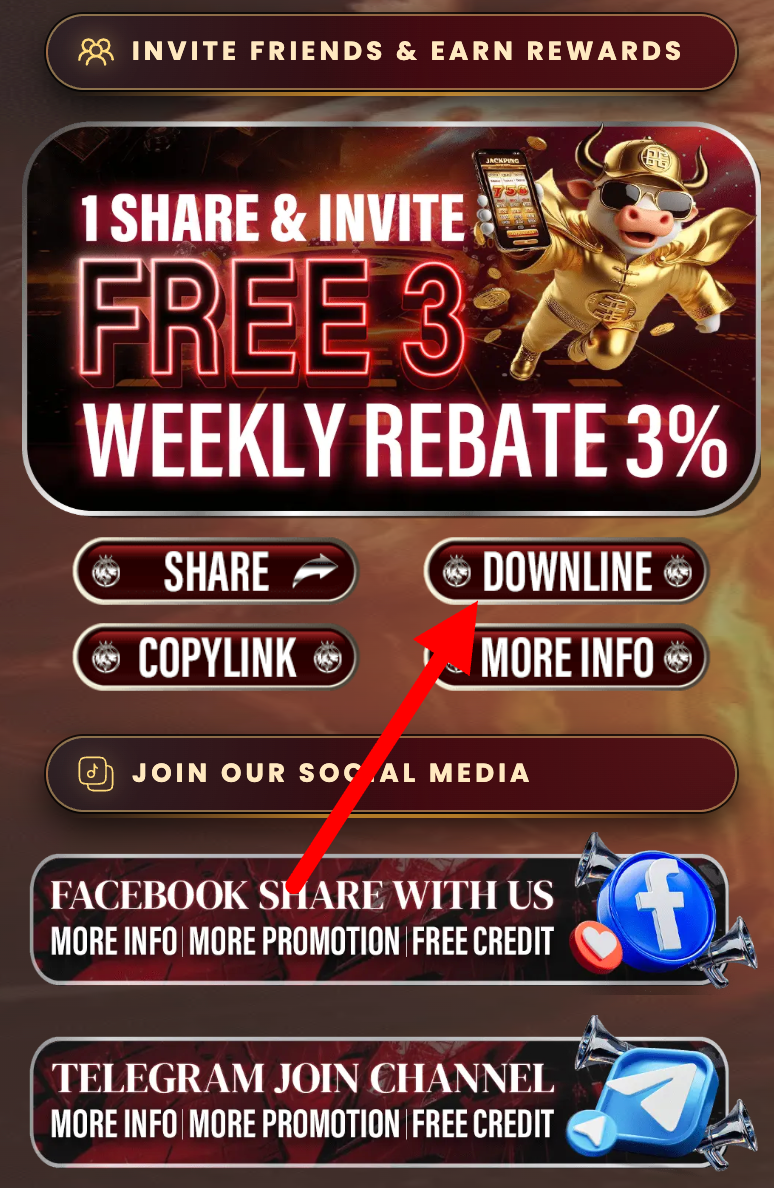 Screenshot: View your referral list (downline) from the tracking page.
 -
4. Understand what shows in your downline
When someone registers using your referral link or QR code, they will be listed in your downline section. You can check details like registration status and referral activity (depending on the app view).
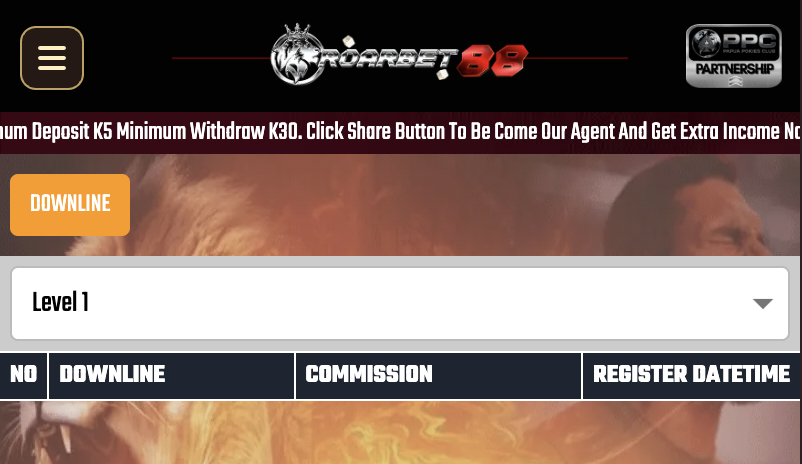 Screenshot: Downline details appear after a successful registration.
Common Issues (Quick Fixes)
If your referral doesn’t track, these fixes usually solve it.
Friend can’t open the link
- Ask them to try Chrome and turn off VPN.
- Copy and resend the link (avoid shortened links).
- Switch between Wi-Fi and mobile data.
Referral not showing in downline
- Wait a few minutes and refresh the downline page.
- Ensure they registered using your exact invite link/QR.
- If they used a different link, it may not track.
Shared in a group but no one joins
- Add a short message explaining the link is for registration.
- Send QR code for easy scanning in person.
Account sharing concerns
- Never share passwords or OTP codes.
- Only use official pages for login and registration.
Sharing & Referral FAQs
Do I need a code to invite friends?
No manual code is needed—your referral code is already included in your invite link and QR code.
How long until a new referral shows up?
It can take a few minutes. Refresh the downline page. If it still doesn’t appear, confirm your friend used your link.
Can I share the link on any platform?
Yes—WhatsApp, Telegram, Facebook, SMS, and more. Just make sure you copy it from the official Invite page.
Is it safe to share my invite link?
Yes. The invite link is designed for sharing. Just avoid sending login credentials or OTP codes to anyone.