
If you’re in Papua New Guinea and want to start playing on ROARBET88, registration is quick and mobile-friendly. You’ll create your login, confirm your phone number with an OTP code, and (recommended) set up your bank details so withdrawals are smoother later. This guide also helps you avoid common mistakes and fake links.
Before You Start
Having these ready will make the process faster (especially on Digicel and bmobile).
- An active Digicel or bmobile number with access to SMS (or WhatsApp if your OTP arrives there).
- A stable data connection (2G/3G/4G). If the page is slow, refresh once and try again.
- A password you can remember (use a mix of letters + numbers; avoid “123456”).
- Your bank account details (recommended to add early for faster withdrawals later).
Registration Steps (With Screenshots)
Follow each step in order. Tap an image to open it larger in a new tab.
-
1. Open the official ROARBET88 page
Start by visiting the official site. Avoid random Facebook/Telegram links or unfamiliar domains.
- Check the site looks correct (logo + clean layout).
- If anything looks suspicious, stop and use the legitimacy check.
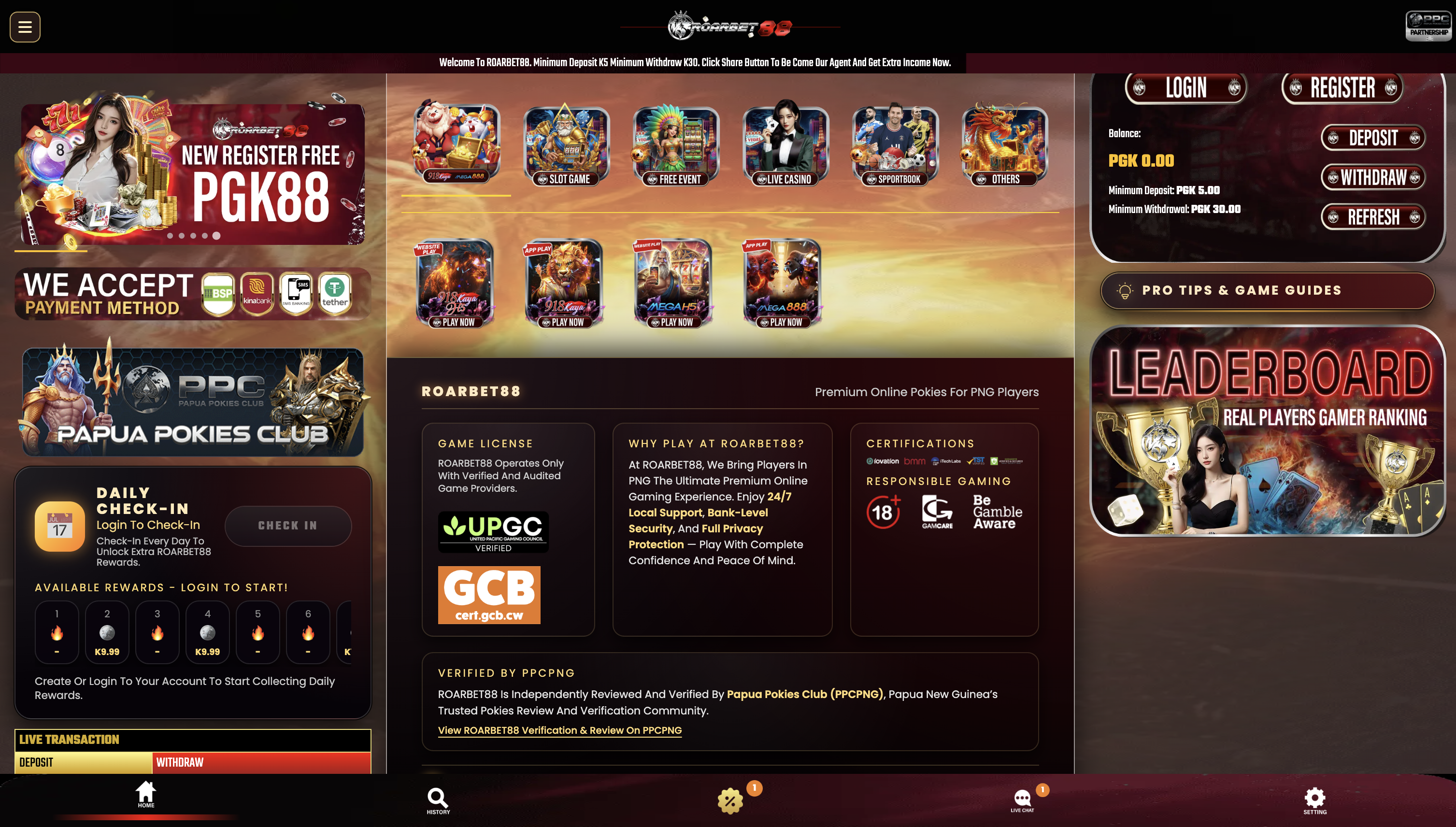 Screenshot: Start from the homepage and find the Register option.
 -
2. Tap “Register” to open the signup form
On most phones, the Register/Join button is near the top of the screen. Tap it to open the registration form.
- If the button doesn’t respond, refresh once or try switching data/Wi‑Fi.
- Don’t register multiple times—duplicates can cause account verification issues.
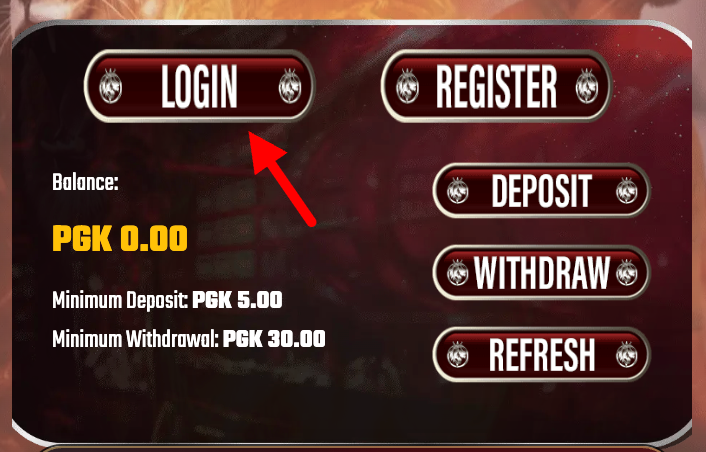 Screenshot: Tap Register to start creating your account.
 -
3. Fill in your details carefully
Enter your mobile number and create a password. If the form asks for your name, type your real name exactly as it appears on your bank account.
Important: Your full name should match your bank account name exactly (spelling + spacing). Name mismatch is a common reason for withdrawal delays.- Use an active phone number you control (you’ll receive OTP codes here).
- Create a strong password (avoid simple patterns like “111111” or “password”).
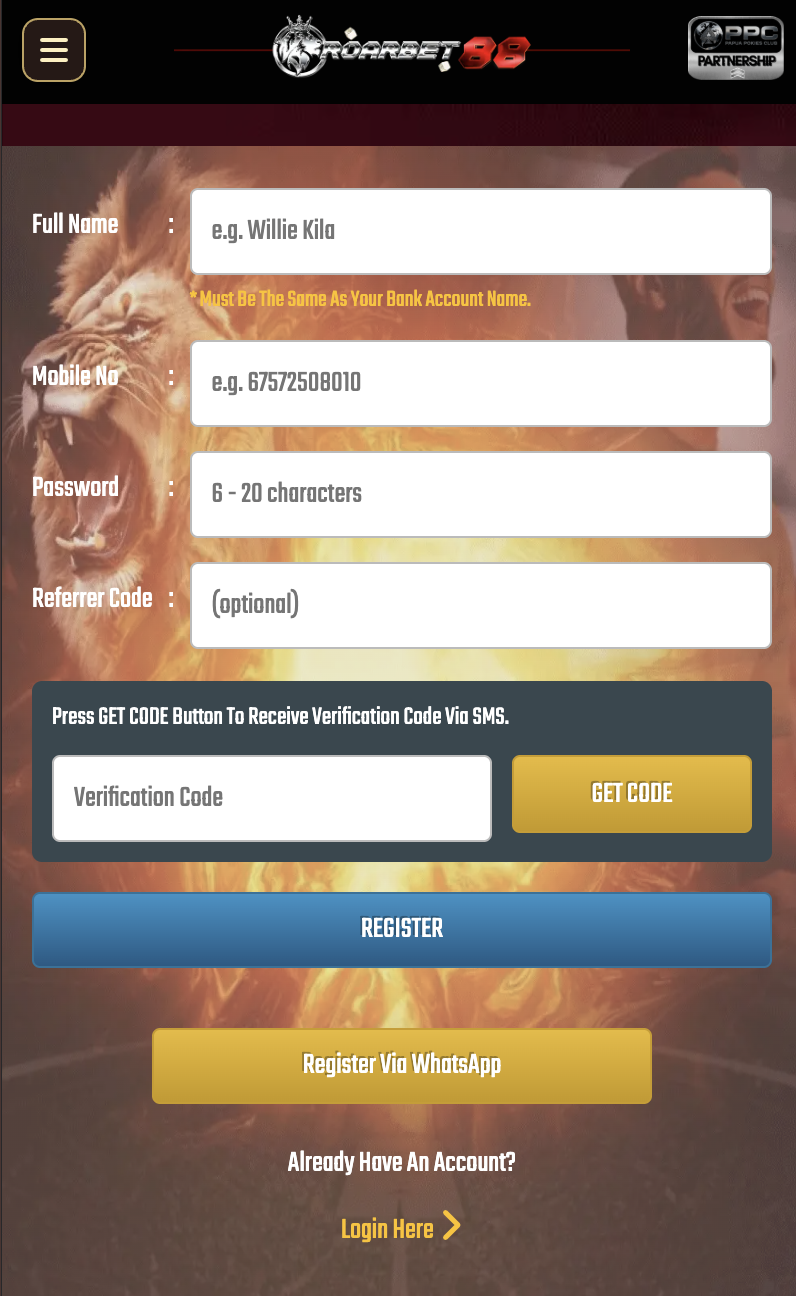 Screenshot: Enter phone number and password in the registration form.
 -
4. Request OTP and verify your number
Tap Get Code. You’ll receive an OTP via SMS or WhatsApp. Enter it to confirm the account.
- OTP can take 10–60 seconds depending on network congestion.
- If OTP doesn’t arrive, wait a moment and try “Resend” once.
- Never share your OTP with anyone (even if they claim to be “support”).
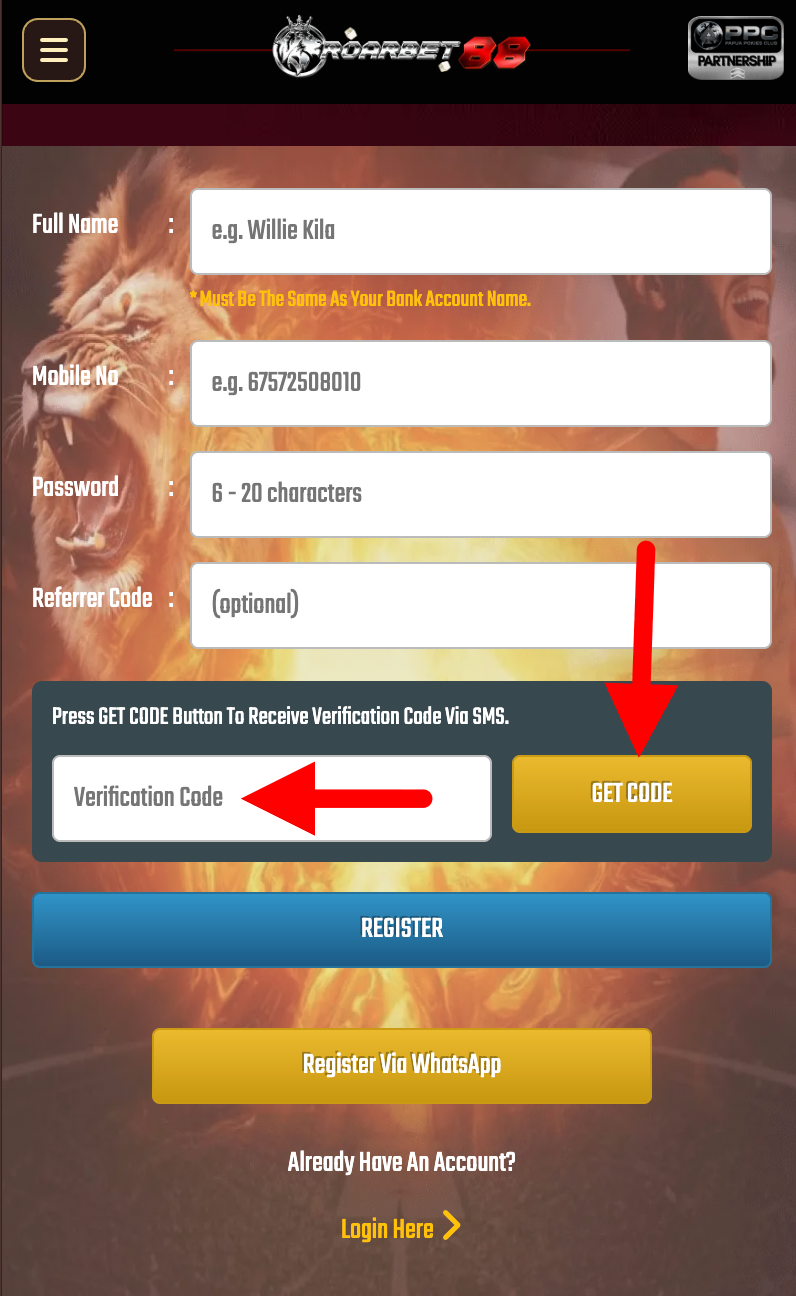 Screenshot: Request OTP and enter the code to verify your mobile number.
 -
5. Add your bank details (recommended)
Adding your bank information early helps withdrawals run smoother later. Enter your bank and account details carefully.
- Use your own bank account (third-party accounts often fail verification).
- Double-check account number before saving.
- If your bank has limits, review our PNG banking guide.
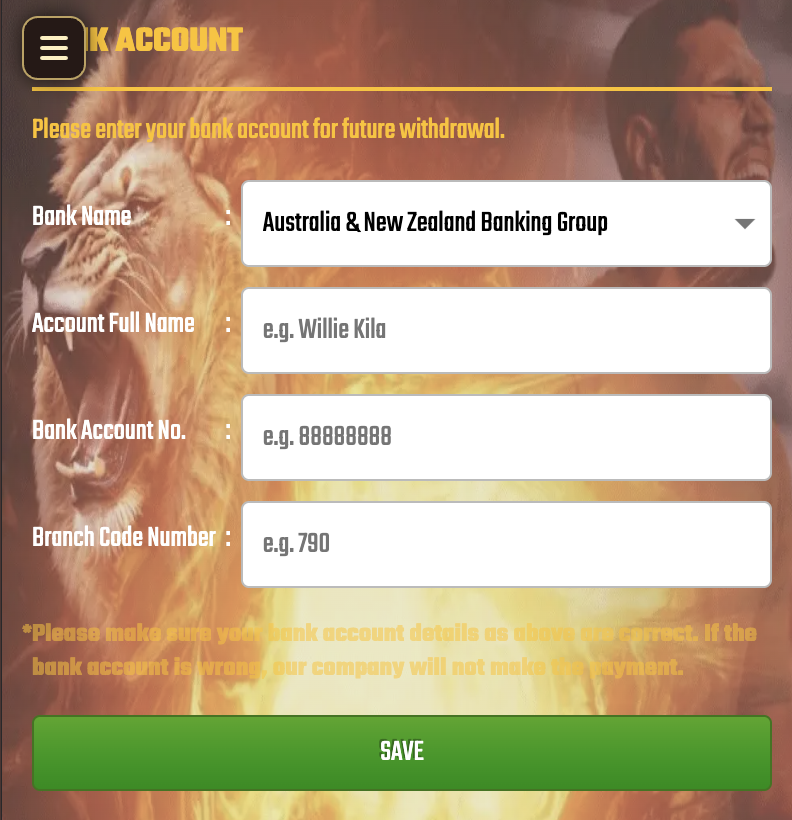 Screenshot: Fill in your bank information for future withdrawals.
 -
6. Save and confirm registration
Review everything once more, then save. After confirmation, your account is ready—log in and you can start playing.
- Make sure your name and bank details are correct.
- Keep your password private and avoid logging in on shared devices.
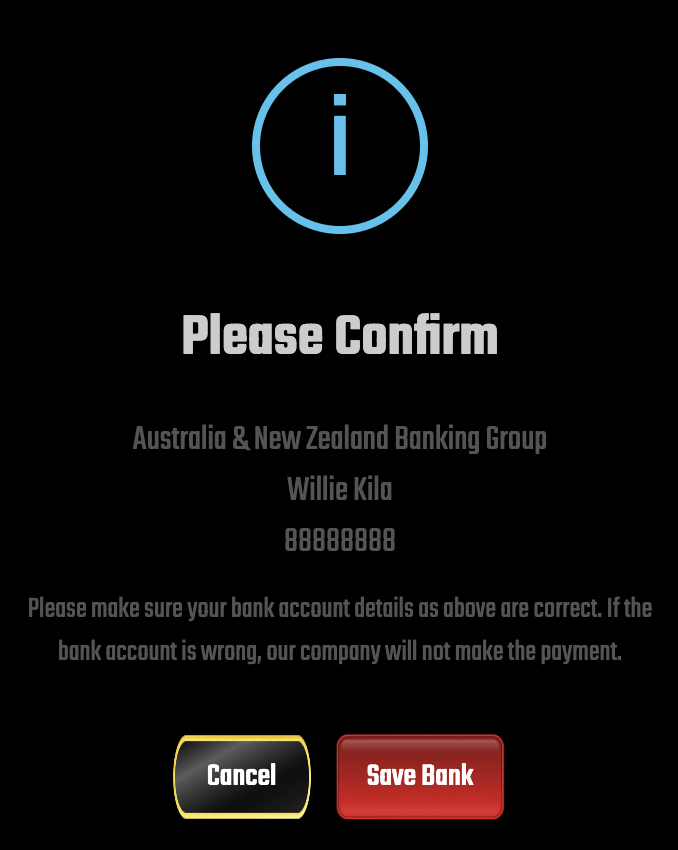 Screenshot: Save/confirm to finish your setup.
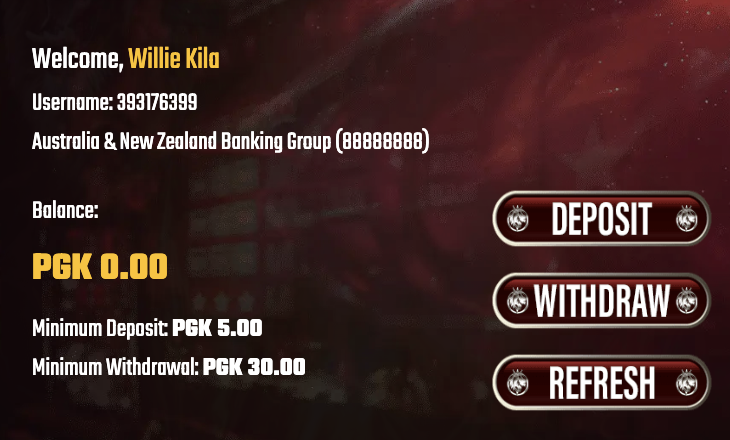 Screenshot: Success message after registration is complete.
Common Problems (Quick Fixes)
If something doesn’t work, these fixes solve most signup issues.
OTP not received
- Check signal and keep your phone on the same SIM used during signup.
- Wait 60 seconds, then resend once (don’t spam resend).
- Restart data or switch between Wi‑Fi and mobile data.
- If still stuck, contact Live Chat.
Name / bank mismatch
- Use the same spelling as your bank (including middle names if shown).
- Don’t use nicknames or abbreviations.
- Fix it early to prevent withdrawal delays later.
Form won’t load
- Refresh once and close extra browser tabs.
- Try a different browser (Chrome recommended).
- If you use ad blockers, disable them for the page.
Forgot password later
- Use the official reset page and verify via SMS.
- See our guide: Reset Password.
Next Step: Deposit in PGK
Once your account is ready, you can top up using supported PNG banking methods. Follow the banking guide to avoid failed deposits.
Deposit in PGK Deposit TutorialFrequently Asked Questions
Is registration free?
Yes. Creating an account is free—don’t pay anyone claiming there is a “signup fee”.
Can I register using Digicel or bmobile?
Yes. Any active Digicel or bmobile number can be used for OTP verification.
Do I need bank details to register?
You can register first, but adding bank details early is recommended to reduce withdrawal delays later.
What if I don’t receive the OTP?
Wait up to 60 seconds, resend once, then try switching data/Wi‑Fi. If it still fails, contact Live Chat.
What if I forget my password?
Use “Forgot Password” on the login page to reset via SMS. Full guide: Reset Password.
Is my information safe?
Use official pages only, keep OTP private, and avoid logging in on shared devices to protect your account.