
Fast & Secure Password Recovery
If you forgot your ROARBET88 password, you can recover access in minutes. The reset process verifies your identity using the phone number linked to your account, then sends a reset message by SMS or WhatsApp.
Before You Start
Having these ready makes the reset smoother and avoids “code not received” issues.
- Use the same phone number you registered with (Digicel or bmobile).
- Make sure your phone can receive SMS (or open WhatsApp if your codes arrive there).
- Check your signal/data connection and disable VPN if the page is slow.
- Prepare a strong new password (10–12+ characters, mix letters + numbers).
How to Reset Your Password (Step-by-Step)
Follow each step in order. Tap a screenshot to open it full-size in a new tab.
-
1. Open the Login page
Start from the official login screen. If you’re already on a random link, close it and navigate from your trusted ROARBET88 page.
- Make sure the site looks correct (logo, clean layout, normal menus).
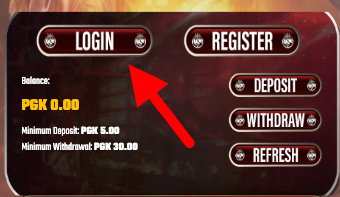 Screenshot: Go to the login screen to begin.
 -
2. Tap “Forgot Password”
On the login screen, select the Forgot Password option. This opens the password recovery form.
- If the button doesn’t respond, refresh once and try again.
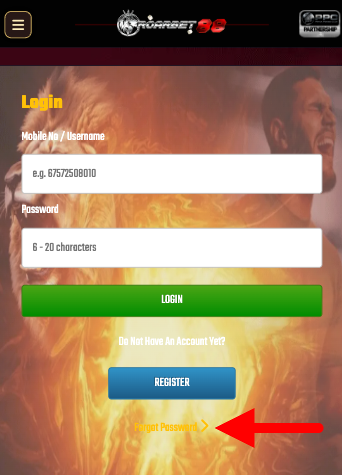 Screenshot: Choose “Forgot Password” to start recovery.
 -
3. Enter your registered phone number
Type the phone number linked to your ROARBET88 account, then submit the reset request. Make sure the number is correct.
- Use the exact number format you used when registering.
- If you changed SIM cards, confirm the number still receives messages.
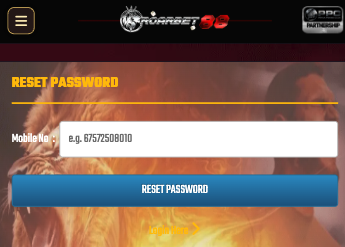 Screenshot: Enter your registered phone number and request reset.
 -
4. Confirm your number
A confirmation prompt may appear. Review the phone number shown and select Yes to proceed.
- If the number is wrong, cancel and re-enter the correct one.
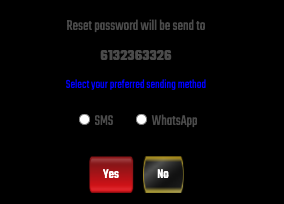 Screenshot: Confirm your phone number to continue.
 -
5. Receive the reset message (SMS/WhatsApp)
You’ll receive a reset message via SMS or WhatsApp. Follow the instructions in that message to create a new password, then return to the login page to sign in.
Tip: If the message doesn’t arrive within 60 seconds, check signal and try again once. If you’re still stuck, use Live Chat for help.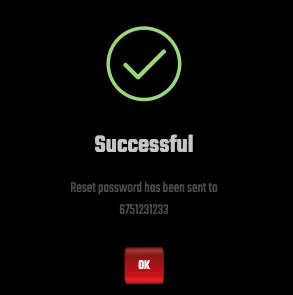 Screenshot: Reset message sent successfully.
Common Problems (Quick Fix)
If the reset doesn’t work, these fixes solve most cases.
Reset code not received
- Check signal (move near a window or toggle airplane mode).
- Wait 60 seconds and request again once (don’t spam).
- Check WhatsApp if your messages sometimes arrive there.
Wrong phone number
- Cancel and re-enter the correct registered number.
- If you no longer use that number, contact Live Chat for account help.
Page not loading
- Refresh once and close extra browser tabs.
- Try Chrome and disable ad blockers for the site.
- Switch between mobile data and Wi‑Fi.
Password still rejected
- Use a stronger password (letters + numbers, 10–12+ chars).
- Avoid common patterns like 123456 or your phone number.
Reset Password FAQs
Is resetting my password free?
Yes. Password recovery is free. Do not pay anyone claiming there is a “reset fee”.
Will the reset arrive by SMS or WhatsApp?
It can arrive via SMS or WhatsApp depending on your network and settings. Keep both available if possible.
What if I changed my phone number?
If you no longer have access to your registered number, contact official Live Chat to verify your account and update details.
How do I keep my account safe after reset?
Use a unique password, don’t share OTPs, and avoid logging in on shared devices. If you see suspicious activity, contact support.